

PingPongRobot
🇰🇷 KR LocalizedScreenshots
Description
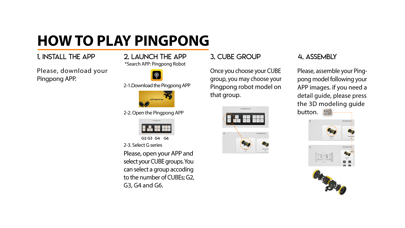
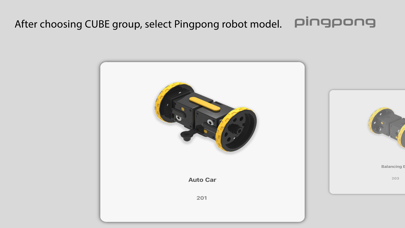
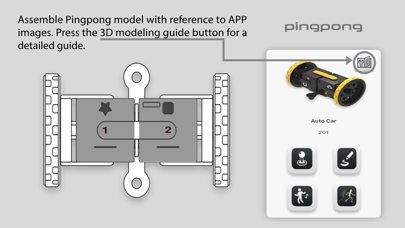
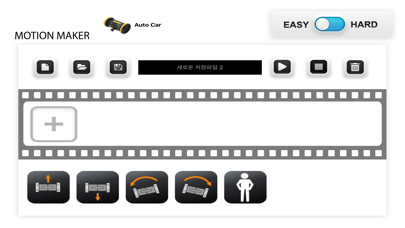
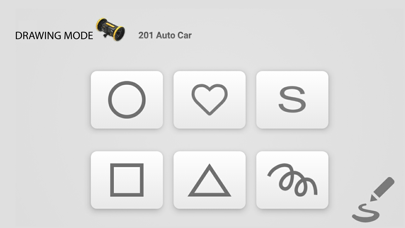
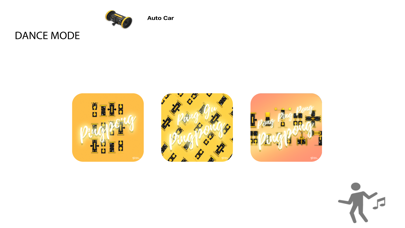
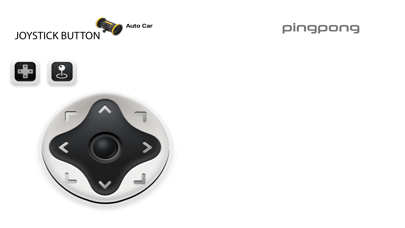
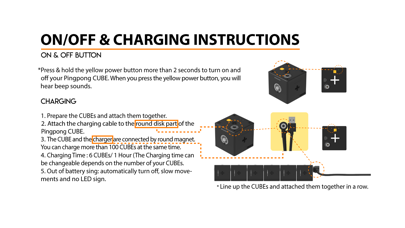
Pingpong APP Detail Experience simple robotic engineering sequences by making your own motion, timing, drawing, dancing and loops, which can be controlled with Pingpong App program. Each Pingpong model needs specified links to assemble Pingpong Cubes. Find the link parts on G2, G3, G4, and G6 boxes. Known as a basic module of Pingpong, the CUBE is a single modular robot that contains a controller, gyroscope, accelerometer, proximity sensor, extra sensor interface, stepper motor, battery, and more. 1.How to download Pingpong APP: Download Pingpong APP from App Store (Search APP: Pingpong Robot). 2.ON/OFF & CHARGING INSTRUCTIONS Press and hold the yellow power button more than 2 seconds to turn on and off Pingpong CUBE. (beeping sounds are made) 3.CHARGING 3-1.Prepare the CUBEs. Attach the parts together. 3-2.Attach the charging cable to the round disk part of the Pingpong CUBE. 3-3.The CUBE and the charger are connected by a round magnet. More than 100 CUBEs can be charged at once. 3-4.Charging Time: 6 CUBEs/hour (the charging time depends on the number of CUBEs). 3-5.If the CUBE automatically turns off, starts to lag, or displays no LED sign, this may indicate batteries are low. 4.HOW TO PLAY PINGPONG 4-1. INSTALL THE APP Download Pingpong APP in smart phone or device. (Search APP: Pingpong Robot from App Store). 4-2. LAUNCH THE APP Open Pingpong APP and select CUBE groups. Select a group depending on number of CUBEs (G2, G3, G4, or G6). 4-3. CUBE GROUP After choosing CUBE group, select Pingpong robot model. 4-4. ASSEMBLY Assemble Pingpong model with reference to APP images. Press the 3D modeling guide button for a detailed guide. 4-5. TURN ON After assembling Pingpong model, press the yellow power button more than 2 seconds to turn on all Pingpong CUBEs. 4-6. PAIRING 1ST CUBE Check first CUBE on the app screen. Press the power button from the assembled robot following the order displayed on the app screen. If 1st CUBE is successfully connected to the smartphone, a pairing signal and a beeping sound will be made. 4-7. PAIRING THE OTHERS After pairing first CUBE & APP, press the yellow power button of the remaining CUBES (follow the order from the APP screen). 4-8. PLAY ROBOT Pingpong APP provides various functions: Joystick, Dancing Mode, Drawing Mode and Motion Making. 5.CUBE COLORS After Pingpong robot is successfully connected to smartphone, it is possible to distinguish the order of each CUBE in LED colors, especially in sequences of red, green, blue, cyan, magenta, and yellow. 6.CUBE ICONS Decide on the order and position of the Pingpong CUBE with different icons, including square, triangle, circle, star, and heart.
What's New
[2.4.0v 출시] 새로운 기능: - 양궁 게임이 추가됩니다. - 모션메이커의 새로운 버전이 추가됩니다. - 핑퐁앱의 웹버전이 추가됩니다. 개선 사항 : - 일부 게임 썸네일과 설명문이 개선됩니다.
Details
- Developer
- RoboRisen
- Main Category
- Education
- Version
- 2.4.0
- Version Release
- 2026-06-11
- Initial Release
- 2019-10-15
- Size
- 156 MB
- Age Rating
- 4+
- Price
- Free
- Languages
- AR, CS, NL, EN, FR, DE and 12 more
- Bundle ID
- com.roborisen.pingpong
- Version Rating
- ★ 0.00 (0)
- First Seen
- 2026-06-30
Metadata updated 2026-06-30
Rank History
Free · Max 90 days · Top 5 categories shown (Y-axis: rank, lower is better)
No rank history data
Free Rankings
No rankings
Paid Rankings
No rankings